Knowledge base
Feed your agent your business knowledge — website, text, Q&A, and files — and keep it current.
A knowledge base (KB) is where your agent's business knowledge lives. You add sources — a crawled website, pasted text, Q&A pairs, or uploaded files — and Omago chunks and indexes them so your agent can retrieve the right passage when it answers a question. A knowledge base is shared at the workspace level: one KB can power several agents, and one agent can draw on several KBs.
Create a knowledge base
- Click Knowledge Base in the left sidebar.
- Click Create Knowledge Base.
- Name it, add an optional description and tags, then save.
A new knowledge base is an empty container. It doesn't do anything until you add content.
Add your website (web crawl)
- Open your knowledge base and click Add content → Start web crawl.
- Enter your website's URL.
- Set the crawl depth (1–3).
- Run the crawl.
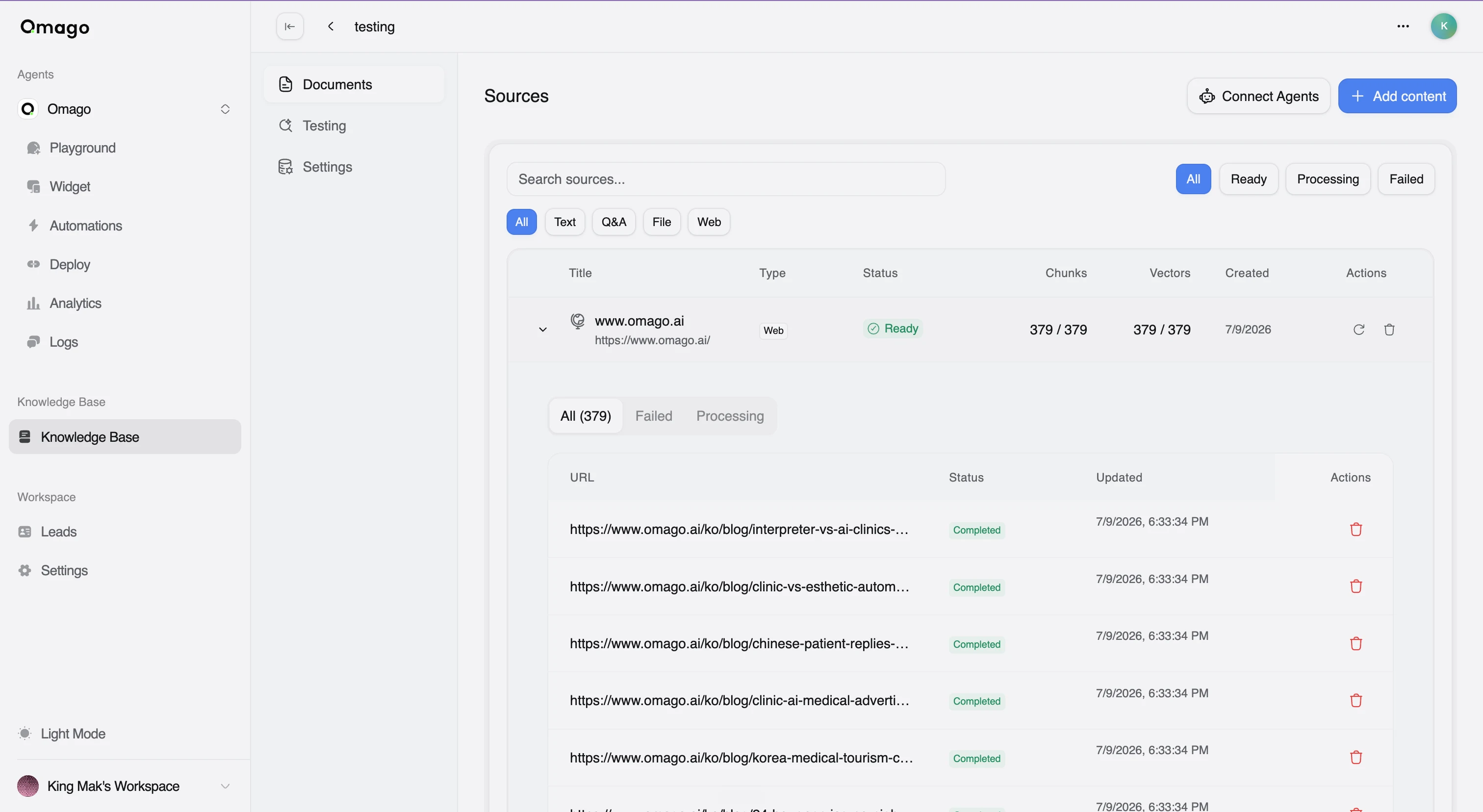
The crawl runs in the background: it discovers and fetches your pages, then embeds them. The source's status moves from Processing to Ready — wait for Ready before expecting the agent to use it.
Add text, Q&A, or a file
Besides crawling a website, you can add content directly:
- Open your knowledge base and click Add content.
- Choose one of:
- Add text — paste plain text; it's ready instantly.
- Add Q&A — enter question/answer pairs; ready instantly.
- Upload file — upload a
.txt,.pdf,.docx,.csv,.xlsx, or.jsonfile; this processes in the background, so it takes a moment to reach Ready.
Each source in the Documents tab shows its type, status (Ready / Processing / Failed), and how many chunks and vectors it produced.
Connect a knowledge base to your agent
Adding content to a knowledge base doesn't automatically make an agent use it — you need to attach the KB to the agent.
- Open your agent and go to Playground.
- Turn on Knowledge Bases.
- Click Add KB and select the knowledge base.
- Set its priority (higher priority is searched first) — and, if you've attached more than one KB, set the weight to control how much each one contributes.
Unlike most Playground settings, knowledge base attachments apply immediately to live chat — you don't need to publish a draft for this change to take effect.
You can also turn on Show Sources so the agent displays inline citations and a source list when it uses knowledge base results.
Check the knowledge base is working
- Open your knowledge base and go to the Testing tab.
- Type a question a customer might ask.
- Confirm it returns the passages you'd expect the agent to use.
If the right passages don't come back, check that the source has finished processing (status Ready, with chunks and vectors populated) and that it actually covers the topic you asked about.
Update your knowledge base after your site changes
You don't need to delete and re-add a website source when your site's content changes.
- Open your knowledge base and go to the Documents tab.
- Find the web source and click Re-crawl source.
Re-crawling is rate-limited — if you try again too soon, the dashboard shows a countdown before you can re-crawl again.
Limits
Knowledge base content counts against your plan's storage cap, summed across every knowledge base in your workspace. For example, Plus includes 100 MB of training data and Max includes 500 MB. Check your current storage limit and usage on Settings → Billing → Plan.
Troubleshooting
- A source is stuck on Processing. Crawling and embedding run asynchronously — large sites take longer. If it doesn't resolve, check for failed URLs and try re-crawling.
- The agent isn't using your knowledge. Confirm the KB is attached to the agent in Playground with Knowledge Bases turned on, and that the source status is Ready.
- The agent gives outdated answers after a site change. Re-crawl the source from the Documents tab — updates aren't picked up automatically.