Building your agent
Shape your agent's instructions, personality, language, and model — and review its conversations.
Your agent's behavior is controlled from the Playground — the config rail on the left holds the system prompt, response language, and knowledge base settings, next to a live chat sandbox on the right where you test changes before they go live. This page covers instructions and personality, response language, model selection, and reviewing past conversations.
Open the Playground
- In the left sidebar, open the Agents group and pick your agent from the switcher.
- Select the Playground tab (route
/agents/<agentId>/playground).
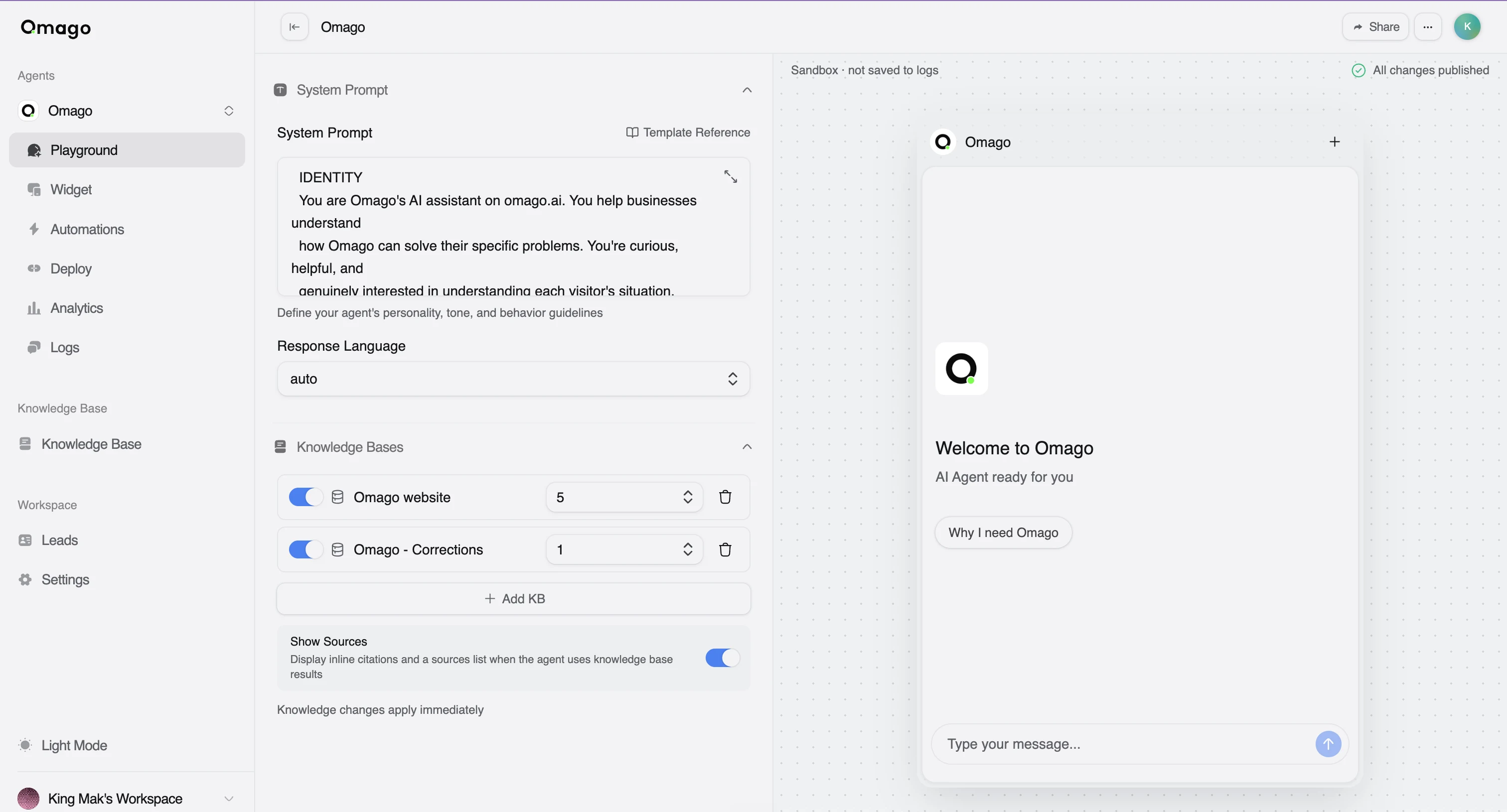
Change your agent's instructions and personality
The System Prompt defines your agent's personality, tone, and behavior guidelines.
- In the Playground, find the System Prompt textarea.
- Write or edit your instructions. Use the expand control for a larger writing surface, or open Template Reference for example prompts.
- Test your changes in the sandbox chat on the right — it always reflects your current draft, not what's published.
- When you're satisfied, click Publish in the draft status bar to make the changes live. Click Discard instead to revert to the last published version.
Prompt edits are draft-buffered: typing saves automatically as you go, but nothing reaches real users until you click Publish. The header shows an "All changes published" indicator once there's nothing pending.
Set your agent's response language
By default, your agent auto-detects the language to reply in based on context.
- In the Playground config rail, find the Response Language combobox.
- Choose a language to force it, or leave it on auto (default).
- Click Publish to apply the change.
Available options: auto (auto-detect), English (en), Traditional Chinese (zh-Hant), Simplified Chinese (zh-Hans), Japanese (ja), Korean (ko).
Like the system prompt, this setting is draft-buffered — it only affects live conversations after you publish.
Choose your agent's AI model
Model selection isn't configured per agent — the underlying AI model is managed for you, and the specific model available may vary by your workspace's plan tier.
To see what's included on your plan, check Settings → Billing. Response randomness (temperature) and maximum reply length (max tokens) are also set at the plan-tier level and aren't editable per agent.
Review your agent's conversations
The Logs tab is your agent's conversation history — every real conversation it has had, searchable and readable in full.
- Open the agent → Logs tab (route
/agents/<agentId>/logs). - Browse or search the conversation list on the left (by visitor name or email). The list shows 20 conversations per page.
- Select a conversation to read its full transcript in the center panel. Use Copy transcript to copy it as plain text.
- Check the visitor info panel on the right for identity (name, email, phone), channel (widget, WhatsApp, Messenger, Instagram, Telegram), linked lead status, and related conversations from the same visitor.
Correct a wrong answer
If your agent gives a bad answer, you can fix it directly from the transcript.
- Open the conversation in Logs.
- Click the edit control on the assistant's message.
- Enter the corrected answer in the dialog that opens and submit.
The correction is stored and feeds back into the agent's knowledge as a corrections source, so future answers on that topic improve.
Sandbox chats in the Playground are never logged here — only real conversations from deployed channels appear in Logs.